Choose what your session player hearsSend it clean.
Or send your sound.
For most recording sessions, send clean audio. That gives the person recording you room to choose EQ, compression, reverb, and other effects later. If an amp sound, pedal, or special effect is part of the performance, agree to send that sound instead.
SessionCat sends the audio that reaches its place in the track’s effects list. The list runs from top to bottom: effects above SessionCat are included in the outgoing sound. Effects below it are not.
Send clean audio
Place SessionCat first in the track’s audio effects list, before EQ, compression, amp simulation, reverb, or delay.
Mic or instrument → SessionCat → other studio
Your session player receives the sound before those software effects. Shape it later in the mix.
Send your processed sound
Place the effects you want to share above SessionCat. Put SessionCat immediately after the last effect you want included.
Instrument → amp, pedals, or effects → SessionCat → other studio
Those effects become part of the audio they receive and record. They generally cannot remove them afterward.
How do I change the plugin order?
Logic Pro: Open the Mixer, find your sending track, and arrange its Audio FX slots with SessionCat before or after the effects you want included.
GarageBand: Select your track, open Smart Controls, expand Plug-ins, and drag the plugins into the desired order. Keep SessionCat switched on.
Apple’s guides: Logic Pro effects routing · GarageBand effects order.
Does “first in the list” always mean completely clean?
No. Pedals, a hardware amp, interface processing, or effects already recorded into an audio file are already part of the sound. Moving SessionCat cannot remove them. For a clean guitar recording, use an unprocessed direct input when available. A software instrument still needs to generate its sound before SessionCat can send it.
Will my reverb bus or master effects be included?
Not automatically. SessionCat on an individual track sends what reaches that track’s plugin slot. Reverb on a separate return, and effects on the master output, are outside that path. If you want to send a combined sound, route the sources and effect returns to a dedicated sending channel in Logic, then place SessionCat after the processing on that channel. Keep incoming SessionCat audio out of that sending mix.
Sending, listening,
and recording.
How do I hear myself while sending?
While connected, SessionCat sends its input and puts the other studio’s incoming audio on its output. It does not automatically blend your own performance into that output.
For your own clean monitoring, use your audio interface’s direct-monitor feature if available. To hear your own software effects, use a separate local monitoring track or path fed from your original source, without SessionCat on that path. Effects placed below SessionCat process the incoming remote audio; they are not a way to hear your own outgoing sound with effects.
Use headphones when recording a microphone, and avoid monitoring the same signal twice if you hear an echo.
How do I record incoming audio in Logic Pro?
- Use a channel with SessionCat for the incoming audio. Confirm its receive meter moves.
- Set that channel’s Output to an unused Bus.
- Create an audio recording track and set its Input to that same Bus. Match mono or stereo to the incoming signal.
- Set the recording track’s Output to your normal listening output. Turn on Input Monitoring (I) and Record Enable (R) for that track.
- If Logic created an Aux for the same bus, set that Aux’s Output to No Output so you do not hear the signal twice.
- Record a short test, then stop. Turn off Input Monitoring (I) and Record Enable (R) on the recording track, and play the recording back before starting the take.
To preserve the incoming sound as received, leave other effects off the SessionCat receiving channel before it feeds the recording bus. Add your mixing effects on the recording track. Never route the recording track back into its own input bus or into the outgoing SessionCat feed.
Does GarageBand record the incoming plugin sound the same way?
GarageBand can receive and monitor SessionCat audio, but it does not provide the internal bus-recording workflow described above. Its normal Record button captures the track’s selected input, rather than the audio returned by an effect plugin. To record the incoming SessionCat signal using the steps on this page, use Logic Pro.
How do we check the sound before the take?
Agree on clean or processed sound, mono or stereo, and who is recording. Play your loudest section and keep levels out of the red. Ask your session player to confirm what they hear. Record a short test and listen back. Keep a local recording of your own performance when possible.
Set up your studio.
What belongs in SessionCat, and what belongs in my music app?
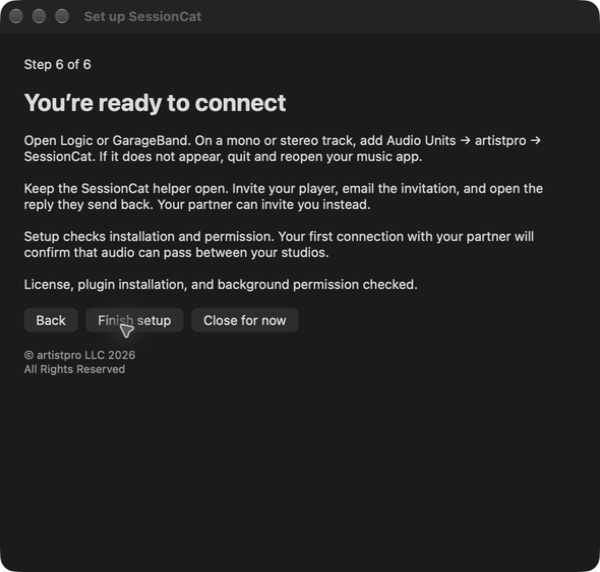
The SessionCat helper handles setup and invitations. The Audio Unit sends the sound at its insert and returns your session player’s audio. Choose devices, arrange tracks, mix, and control playback in Logic Pro or GarageBand. Keep the helper open during the session.
You can connect Logic to Logic, Logic to GarageBand, or GarageBand to GarageBand. Receiving and listening work separately from recording: see the recording instructions and GarageBand limitation before planning a take.
Choose your audio devices and check input access
In your music app’s audio settings, select the microphone or interface you intend to send and the output you intend to hear. The devices shown by the Connection Checker describe your Mac’s default setup; your music app can use different devices.
If a live microphone or instrument produces no input, check the selected track input, cable, interface gain, and the music app’s microphone permission in macOS Privacy & Security. A prerecorded track does not need a live microphone input.
Use wired headphones or your interface’s headphone output for performance monitoring. Bluetooth and wireless speakers add listening delay. Start at a comfortable volume and keep speakers away from an open microphone to avoid feedback.
Check mono and stereo before recording
Match the sending source, SessionCat instance, receiving channel, and recording track. For stereo, check that the plugin shows In 2 / Out 2 at both ends. A stereo label alone does not prove that two independent channels are arriving.
- Play a stereo test region with sound only on the left, followed by sound only on the right. Use a source that is already separated before it reaches SessionCat.
- Ask your session player to confirm that each side arrives on the correct side. Watch the receiving channel’s left and right meters.
- Record that short test in Logic and listen back. Repeat in the opposite direction if both studios will send.
A single microphone is normally mono. Duplicating it into two channels does not create a stereo recording. Resolve a missing or swapped side before the take.
Sample rate, recording depth, and audio buffers
Check the sample rate shown by each music app and the plugin. Use the same rate at both ends; do not assume automatic conversion between different session rates. Sample rate in kHz and recording depth in bits are separate settings. A 24-bit recording setting is not a measure of network speed.
Logic’s audio buffer controls how much audio the Mac processes at a time. A smaller buffer can reduce delay but puts more pressure on the Mac; a larger one can help with processing overload. It does not repair missing network packets. GarageBand exposes fewer audio settings, so follow the controls actually available in your app.
After changing devices, channel format, or sample rate, reconnect and repeat the short audio test. Save your project before making setup changes.
A quick pre-session checklist
- Connect both Macs to power, keep them awake, and use Ethernet where practical.
- Open the helper and your music app at both ends. Check devices, input permissions, channel format, and sample rate.
- Run the checker with your actual session player over the connections you will use.
- Exchange the music-session invitation and reply. Check connection status on both Macs.
- Play audio, confirm that the other studio hears it, and check left and right separately for stereo.
- Set recording and monitoring paths, check for clipping or feedback, and record a short test. Listen back before the take.
Speed, delay,
and a steady connection.
Does a low ping mean that is the delay I hear?
No. Round-trip time (RTT) measures a network trip out and back. Your listening delay also includes audio devices, the music apps, packet buffering, and any effects that delay the signal. Half of RTT is only an estimate of one network direction; the two directions can differ.
Distance affects what is possible, but mileage alone cannot qualify a session. Test the actual connection and play together. A connection that works for exchanging recorded parts may still feel too delayed for tightly synchronized playing.
What do the plugin’s status and counters prove?
CONNECTED / DIRECT reports a direct transport connection. It does not prove that a track contains sound or that the receiving output is routed to your headphones. The SEND/RECEIVE activity labels are connection indicators; confirm sound with the music app’s meters and a recording.
Sent and received packet counts show network activity. Audio frame counters show processing activity and can advance while the audio is silent. Compare changes during a short test at both ends rather than treating a large total as proof of a successful take.
In the compact counter line, u means receive underruns, o send overruns, d dropped packets, and r reordered packets. Rising underruns mean the receiver lacked requested samples; rising overruns mean the sender could not queue all samples. These counts use different units and are not interchangeable dropout totals. Save readings before and after an audible problem for support.
The current plugin’s Jitter reading is an arrival-spacing indicator, not a calibrated measurement of timing variation. Do not compare it directly with the checker’s variation result or use it alone to judge a connection.
How much bandwidth does audio need?
Both upload and download matter. The current PCM transport sends 32-bit floating-point samples: at 48 kHz, that is about 1.54 Mbps for mono or 3.07 Mbps for stereo, in each sending direction, before packet overhead. Allow extra capacity for overhead, other applications, and changing network conditions.
A short download-speed sample is not a sustained upload test or proof that music will arrive steadily. Run the session-player test, then an actual audio test. SessionCat does not expose compressed-audio quality or bitrate choices in this workflow.
Audio buffer or network buffer?
The music app’s audio buffer helps the Mac keep up with processing. The receiver’s network buffer holds incoming audio briefly to accommodate uneven delivery. More buffering can trade lower dropout risk for more delay, but it cannot recover every missing packet.
The current SessionCat workflow does not provide a manual receive-buffer slider. Start with a stable connection and sensible music-app settings; do not look for another app’s buffer controls in SessionCat.
Can I use a video call at the same time?
Use a separate video app if you want to see your session player. Keep SessionCat as the music path, and avoid also sending or monitoring that same music through the video call. Duplicate paths can cause echo or delayed sound.
Use headphones. If the connection becomes less steady, lower the video quality or turn video off and retest. Video and audio may not appear synchronized because the two apps use different paths and buffering.
Invitations, lessons, and shared networks
Send invitations only to the session player you intend to connect with. Keep invitation and reply attachments private, and agree before recording a lesson or performance. This workflow is an invitation between studios; do not assume that one invitation creates a public room or a whole-class mixer.
On a school, workplace, or managed network, ask the administrator to help if the connection test cannot complete. Give them the test results. Keep security protections in place; do not copy port numbers or router instructions from another audio application.
Having trouble connecting?
Start with these checks on both Macs. You do not normally need to enter an address or change your router to send an invitation.
- Check your internet connection. Open a website on each Mac. Use Ethernet where possible, and pause large downloads or cloud backups during your session.
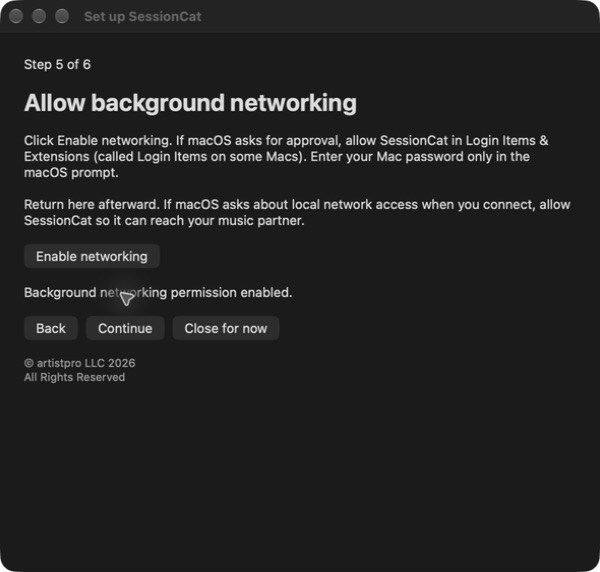
- Allow SessionCat when macOS asks. Approve Local Network access. If the firewall asks whether SessionCat can accept incoming connections, choose Allow. Keep your firewall switched on.
- Check your VPN. If you use one, temporarily disconnect it, then run the connection test again. Reconnect it afterward if needed.
- Try a fresh invitation. Keep both apps open, exchange the invitation and reply, and open the reply on the Mac that sent the invitation.
- Test between the actual studios. A successful test on one Mac checks that Mac’s internet connection. The session-player test checks both directions between your studios.
Do I need to change my router settings?
Start with the internet connection you already use at home. Connect your Mac by Ethernet or Wi-Fi, open the Connection Checker, and run a test with your session player. The app tries to connect you automatically.
If the test passes, there is nothing to change on your router. You do not need to enter an IP address or set up port forwarding.
If it does not connect, follow the steps above on both Macs and try again. Still stuck? Send us your test results and tell us which internet provider you use. We can help you work out the next step. If your provider needs to change something, we’ll explain what to ask them.
Keep your firewall on. You do not need to understand networking to ask for help.
The invitation arrived. What do we do next?
- Both people open the same app: Connection Checker for a test, or the SessionCat helper for a music session.
- The person receiving the invitation opens its attachment in that app and accepts it.
- They send the reply back using their email app.
- The person who sent the invitation opens that reply. Keep both apps open while they connect.
If you have several invitations in your inbox, use the newest matching invitation and reply. A checker invitation is for the checker, not the music-session helper. If an invitation has expired, start again with a new one.
It stays on “waiting” or does not connect.
- Make sure the person who sent the invitation has opened the reply—not just read the email.
- Open a website on both Macs to check that both are online.
- Check for a macOS permission message behind your other windows. Allow SessionCat or the Connection Checker when prompted.
- If either Mac uses a VPN, disconnect it temporarily and try again.
- Quit and reopen the app on both Macs, then exchange a fresh invitation and reply.
Change one thing at a time and retest. If it still waits, send us a screenshot of what each Mac shows.
I clicked “Don’t Allow.” How do I fix that?
On Macs that have this setting, open Apple menu → System Settings → Privacy & Security → Local Network. Turn on access for the SessionCat app or Connection Checker you are using, if it is listed. Reopen that app and try again.
If your Mac’s firewall blocked the app, open System Settings → Network → Firewall → Options. Find the app and allow incoming connections. Keep the firewall itself on. Apple’s firewall instructions can help you find the controls.
My Mac passed. Why are we still having trouble connecting?
The This Mac test checks your Mac’s connection to the test services. Next, run with a session player to check the connection between your two studios. Both people should see signals traveling in both directions.
If that test passes but your music session will not connect, keep the same internet connections, open the SessionCat helper on both Macs, check that setup is complete, and send a fresh music-session invitation. Send support the successful checker results and the message shown by the helper if the problem continues.
One person receives a signal, but the other does not.
In the checker, look at both direction indicators on each Mac. If only one direction receives a signal, check permissions and VPN settings on both Macs, then repeat the test.
If the checker passes both ways but music travels only one way, check the sending track first: is it playing or receiving your instrument, is SessionCat switched on, and does its sending meter move? Then check the receiving meter on the other Mac. If that meter moves, follow the monitoring and recording instructions to hear it.
We connect, but the sound clicks, breaks up, or stops briefly.
- Use Ethernet on both Macs if possible. If using Wi-Fi, move closer to your router and avoid a guest network.
- Pause large downloads, cloud backups, and video streaming while you test.
- Run the session-player check again and read its advice. A fast internet plan does not always mean a steady connection.
- In your music app’s audio settings, try a larger audio buffer. This can help the Mac process audio, although it adds delay and cannot fix every connection problem.
- If you are using a high sample rate, try a lower rate supported by both music apps and audio devices. Agree on the same rate at both ends, then reconnect.
Record and listen back to a short test before the take. Ethernet is recommended for dependable studio sessions; cellular hotspots and hotel Wi-Fi are not our recommended setup.
It worked earlier, but stopped after a break.
Wake both Macs and check that they are still online. Check whether a VPN reconnected, an Ethernet cable was unplugged, or a Mac switched Wi-Fi networks. Restore the connection you were using, reopen the helpers, and try a fresh invitation. If the internet connection changed, run the session-player check again.
Keep both Macs awake during the session. There is no need to change your router simply because a Mac went to sleep.
What should I send to support?
Use Save results in the checker when available, and include a screenshot of the problem. Tell us:
- What each person sees, and whether the problem affects one direction or both.
- Each Mac’s model, macOS version, and SessionCat or checker version.
- Whether each Mac uses Ethernet or Wi-Fi, and the name of each internet provider.
- For an audio problem, the music app, audio interface, and session sample rate.
Email SessionCat support. Do not send passwords, license keys, or invitation attachments.
A little help, when you need it.
I see meters, but hear nothing.
Check the receiving track’s mute, output, input monitoring, and bus routing. An incoming signal does not automatically create a recording track. Monitor and record the receiver’s output in your music app. Turn off the metronome while checking which sound is arriving.
My session player cannot connect.
Keep the SessionCat helper open on both Macs. Check internet access on both Macs and use the Connection Checker from the two studios you plan to use. If the invitation has expired, send a new one. If you use a VPN, disconnect it temporarily and test again. If you still cannot connect, send your test results to SessionCat support.
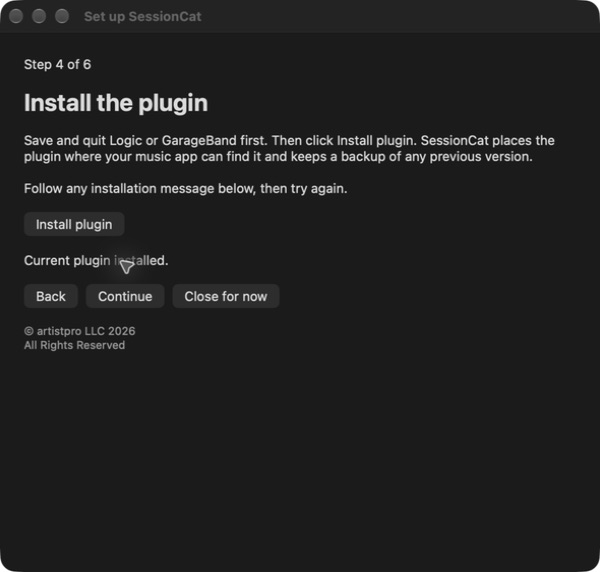
The plugin is missing.
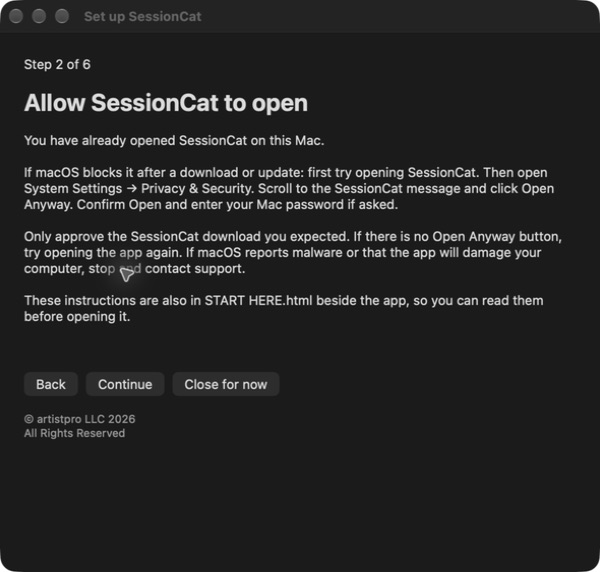
Save and quit your music app, click Install plugin in the SessionCat helper, then reopen Logic or GarageBand. In Logic, open Plug-in Manager and check for SessionCat. SessionCat requires macOS 13 or later and supports Intel and Apple silicon.
Still stuck? Contact SessionCat support. Include your Mac model, macOS version, music app, and what you see. Never email passwords.